
How to Export a Text Effect to Canva

Step 1: Create Your Text in TextStudio
Start by entering your text into the Text tab of TextStudio's editor. Choose your font, adjust the spacing, curve, rotation, and apply any styles or animations you want. For this example, we used this Retro text effect.

Step 2: Remove the Background
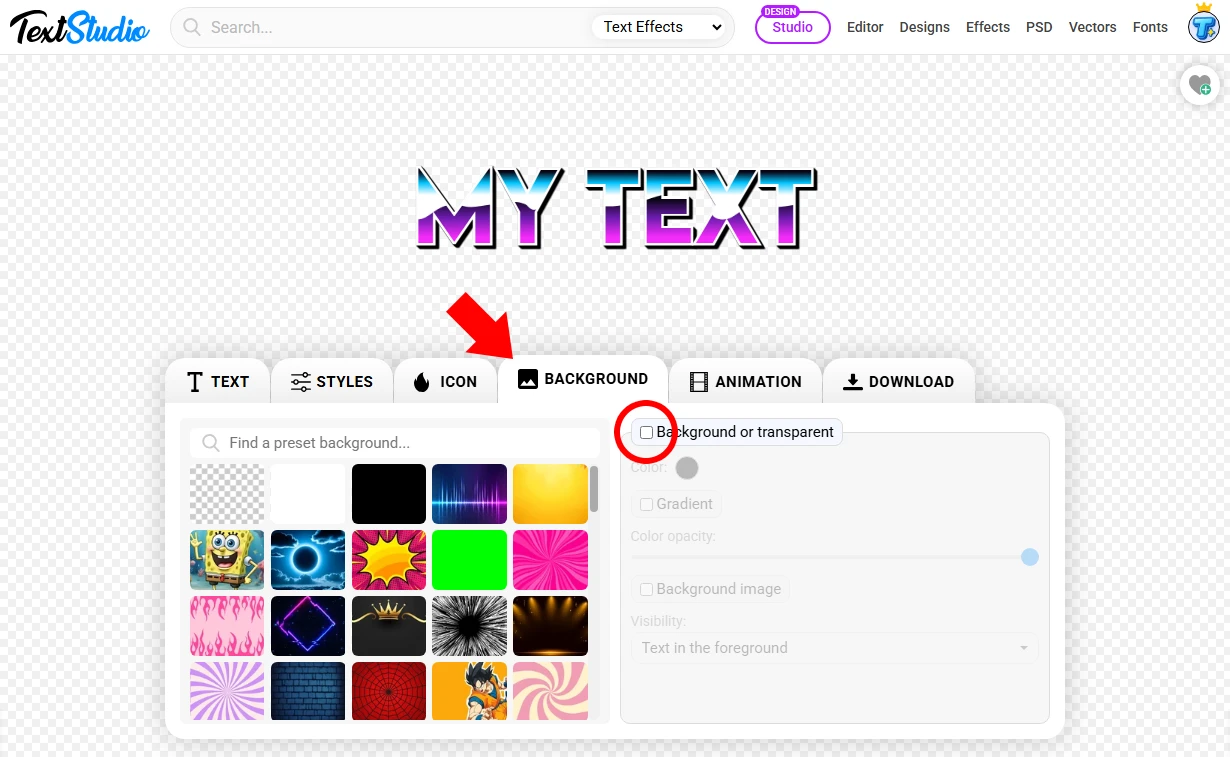
To use your text over any Canva background, you need a transparent version of it. Go to the Background tab and check the box labeled "Background or transparent". This removes the solid background and makes the text ready to overlay.
Step 3: Copy the Text Image to Clipboard
Now, go to the Download tab. Select PNG Transparent format and High quality (or Max if you’re a premium user). Then click Copy Image — this will copy your design directly to your clipboard without needing to save a file.

Step 4: Paste It into Canva
Open your Canva project. Right-click anywhere on your canvas and select Paste (or simply press Ctrl + V / Cmd + V on your keyboard). The image will appear instantly with a transparent background, ready to be moved or resized as needed.

Step 5: Enjoy Your Result!
Your TextStudio creation is now perfectly integrated into your Canva design. You can layer it over photos, graphics, or use it as a centerpiece for your layout.

Final Tip
Using the Copy Image method saves time and keeps your workflow fluid between platforms. It’s ideal for social media posts, thumbnails, stories, and more.

